> For the complete documentation index, see [llms.txt](https://upgrade-platform.gitbook.io/upgrade-documentation/llms.txt). Markdown versions of documentation pages are available by appending `.md` to page URLs; this page is available as [Markdown](https://upgrade-platform.gitbook.io/upgrade-documentation/6.6/working-with-segments.md).
# Working with Segments
## Overview
Segments are a way to create reusable lists of users and group for inclusion or exclusion in experiments and feature flags. A segment consists of one or more **lists** which can each be of one of three types:
* individual - a list of user ids
* group - a list of group ids (for a specific group type)
* segment - another already-defined segment
## Create a segment
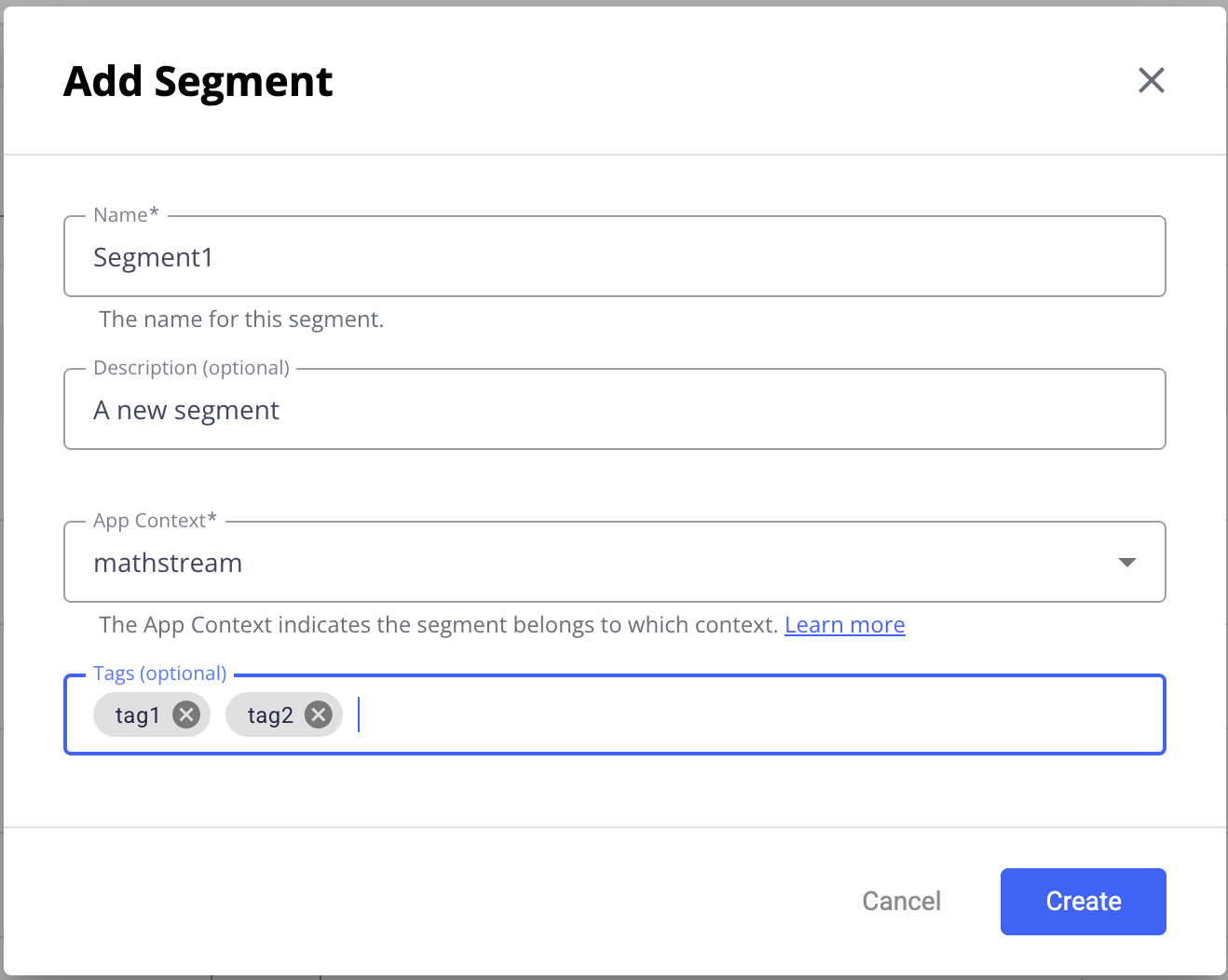
To create a new segment click on the 'Add Segment' button. You'll supply a name, an optional description, an app context from available contexts, and optional tags. These values can be edited later.
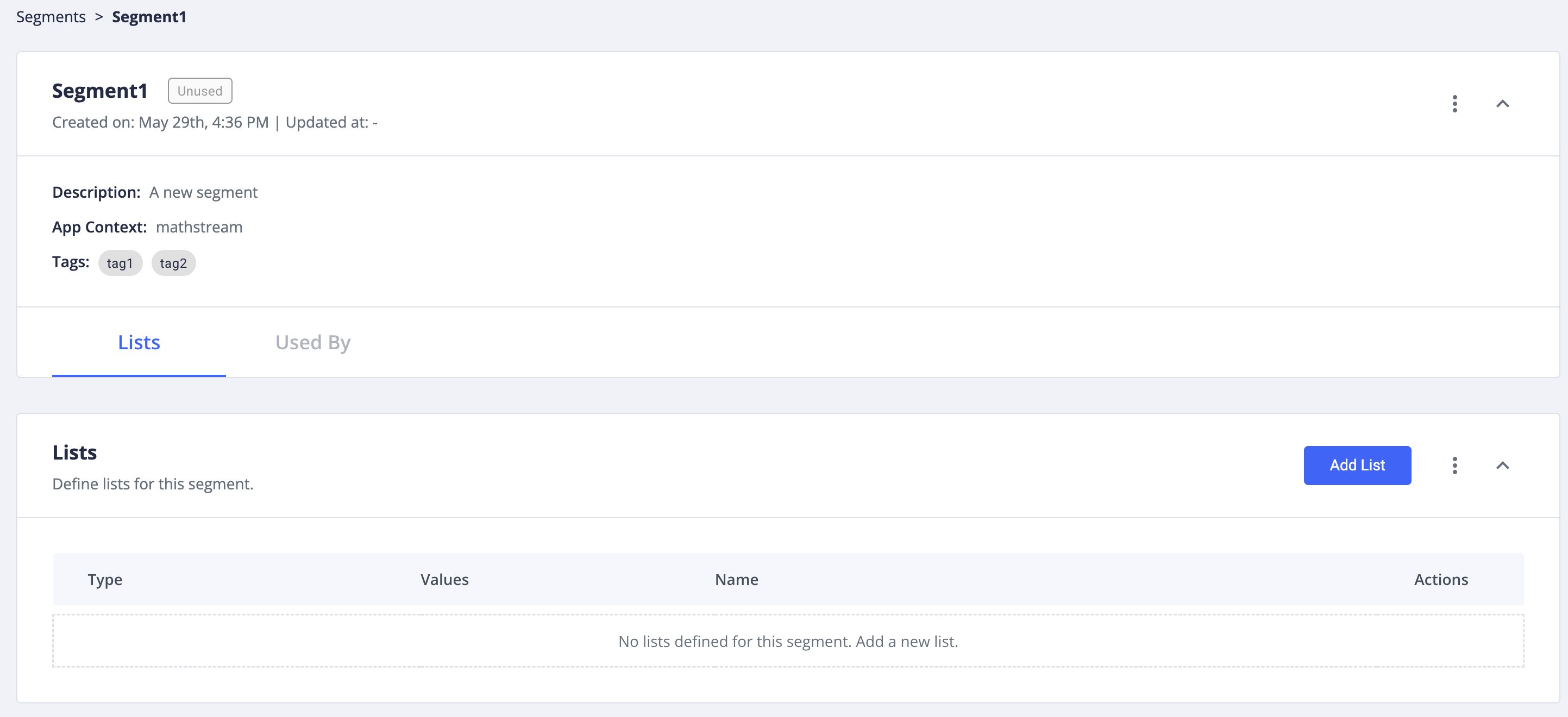
When you hit 'Create' a new segment will be created, with an empty '**Lists**' list.
## Add lists
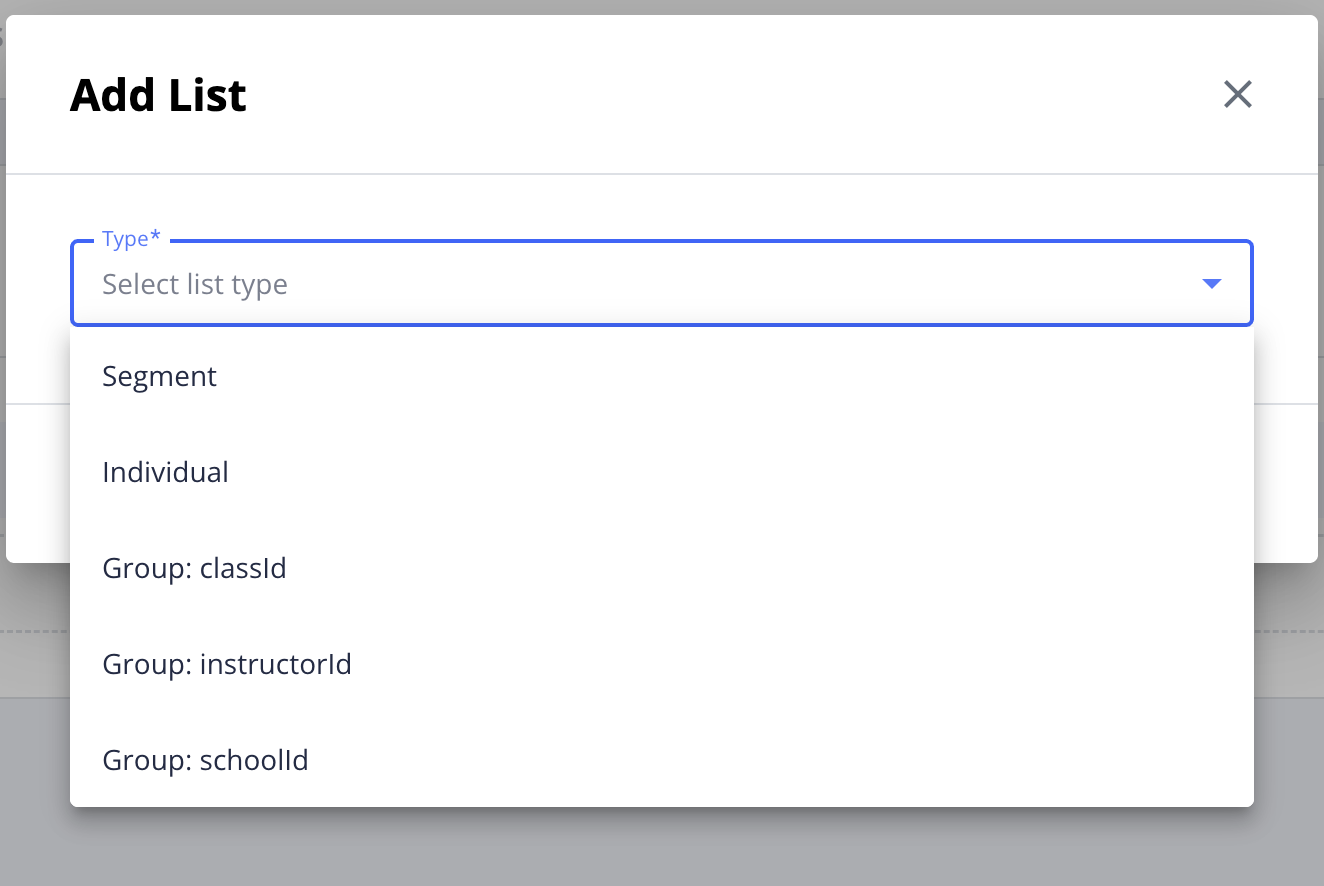
When you click 'Add List' you'll need to choose the list type.
For type 'Segment', you'll choose one from a list of available segments that have already been created in your segment's context. Adding a list of type 'Segment' will include all the users and groups (and segments) in the selected segment's lists.
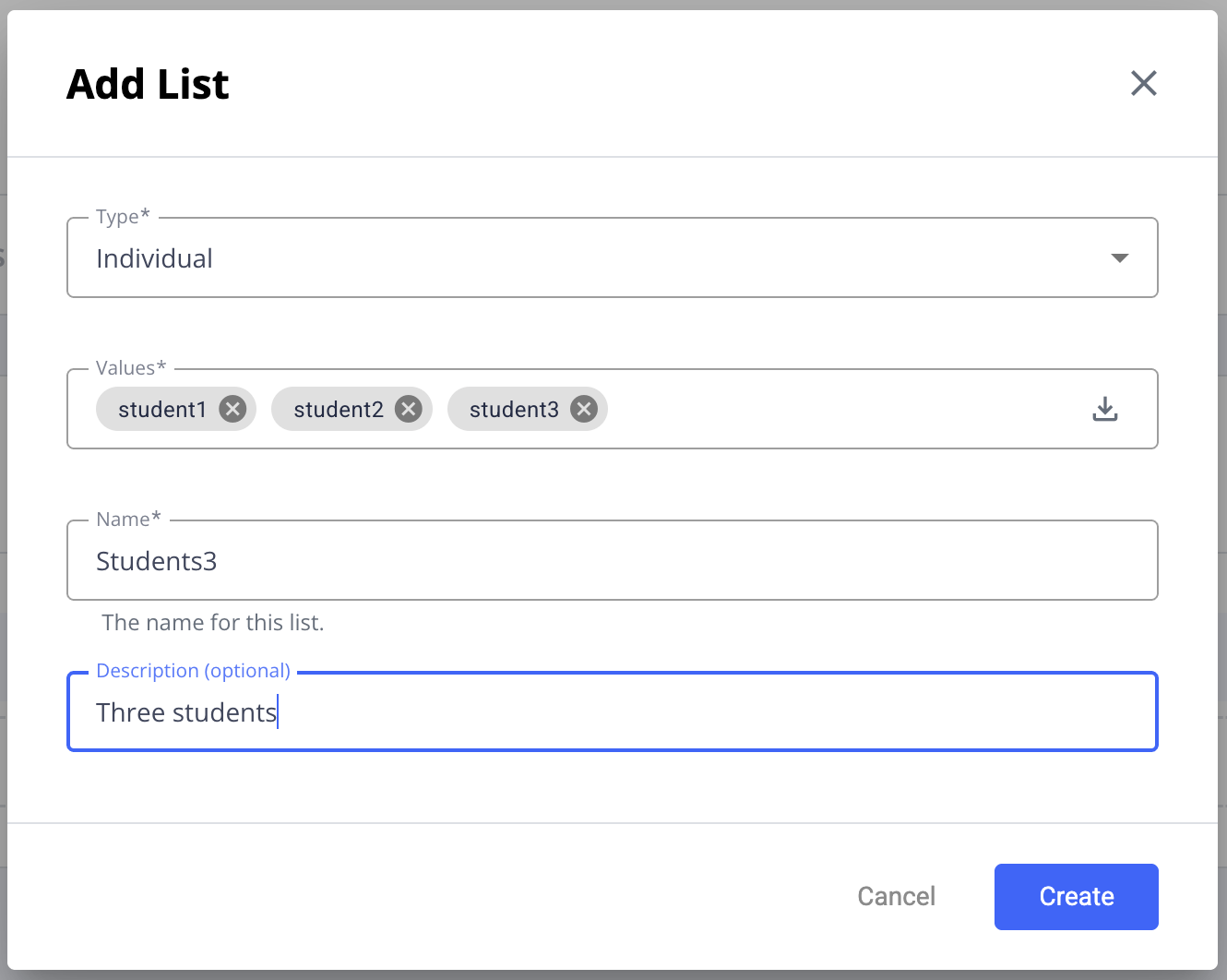
For type 'individual' or any of the 'Group:...' types, you'll add the ids to be included in the 'values' field - either by typing them in individually or uploading a csv file.
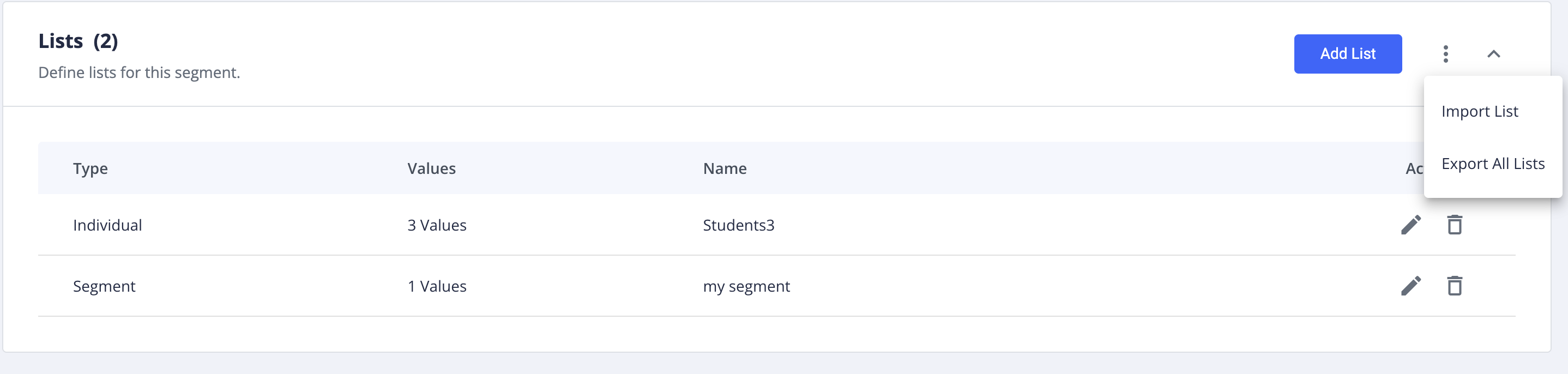
This lists now appear on the segment's page, from which you can edit/view/delete them. You can also import and export lists (json format),
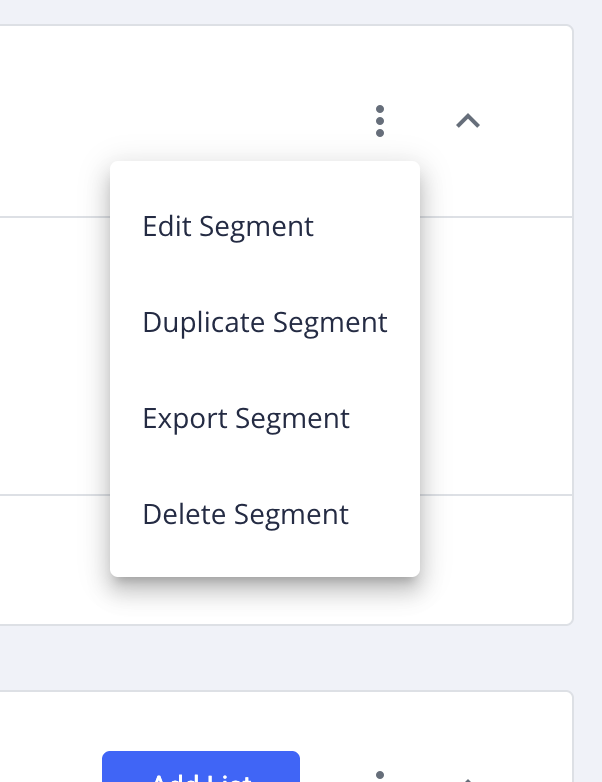
and perform similar actions for the entire segment.
## Using Segments
To use a segment for inclusion in, or exclusion from, a feature flag or experiment, see the instructions for adding inclusions and exclusions of type 'segment' in [Creating an Experiment](/upgrade-documentation/6.6/creating-an-experiment/inclusion-and-exclusion.md) or [Creating a Feature Flag](/upgrade-documentation/6.6/creating-a-feature-flag.md).
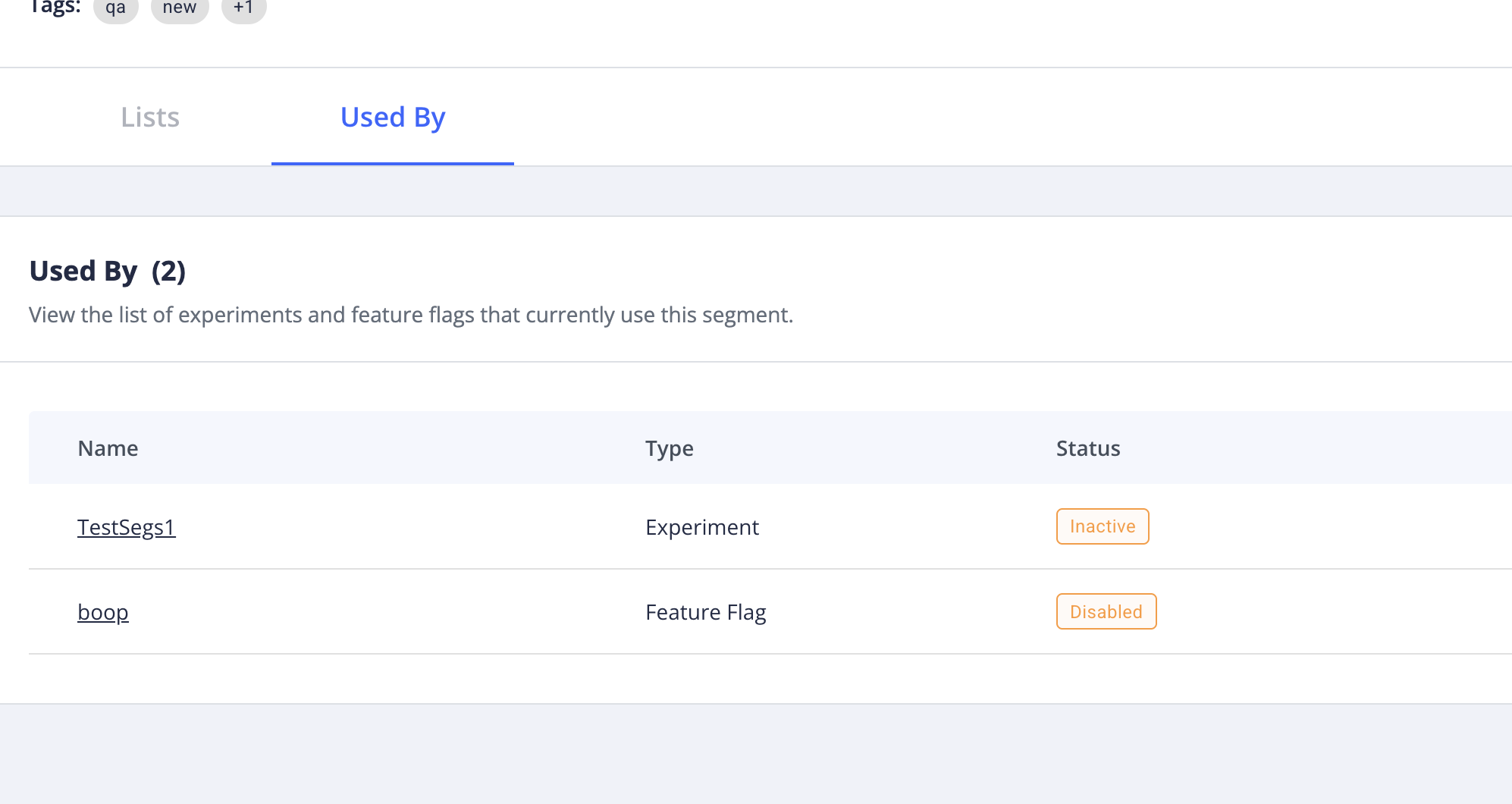
When a segment is used in any experiments or feature flags, those usages will show up in the 'Used By' tab of the segment's page.